You’ve spent hours perfecting a design for your business cards, banners, or custom apparel tags, only to open the final PDF and find the fonts look completely wrong. This is one of the most common (and most frustrating) issues in print production, and it almost always comes down to how fonts were handled in the file. Specifically, it comes down to the choice between outlines vs embedded fonts in your PDF.
Both methods exist to solve the same problem: making sure your text looks exactly as intended when someone else opens or prints your file. But they work in fundamentally different ways, and picking the wrong one can mean blurry text, missing characters, or a file that can’t be edited later.
At Apex Workwear, we review print-ready files every day across our full range of products, from business cards and flyers to large-format banners and signage. Font issues are one of the top reasons files get flagged before production. This guide breaks down how outlining and embedding actually work, where each method shines, and which option gives you the best results when preparing PDFs for professional printing.
Why fonts break in print PDFs
When you create a design in software like Adobe Illustrator or InDesign, your file references the fonts installed on your computer. Those font files contain all the instructions for how each character should be drawn, from kerning to weight. When you send that PDF to a print shop, those font references travel without the actual font data unless you’ve taken deliberate steps to include them. If the receiving system doesn’t have the exact font installed, it substitutes a default, which can completely shift your layout, spacing, and character appearance.
A substituted font can turn a clean, on-brand design into something unrecognisable by the time it reaches the press.
The role of font licensing
Font files are software, and they come with licences that restrict how they can be shared or embedded. Some fonts are flagged as non-embeddable, which means PDF export tools will refuse to include them automatically. When that happens, the font data simply isn’t in the file, and the printing system has to substitute whatever it can find locally. This is a common source of broken layouts, especially with decorative or brand-specific typefaces.
Common reasons fonts fail in PDFs:
- The font licence blocks embedding
- The font was installed after the file was saved
- The file was exported with incorrect PDF settings
Why screen previews mask the issue
Your PDF might look perfect on your own screen because your operating system already has the font installed locally. The preview renders correctly using your machine’s fonts, hiding the fact that the data isn’t actually embedded in the file. This gap is exactly why the debate around outlines vs embedded fonts matters so much: what looks right on screen is not always what a professional printer will reproduce.
Embedding fonts for print: what you get
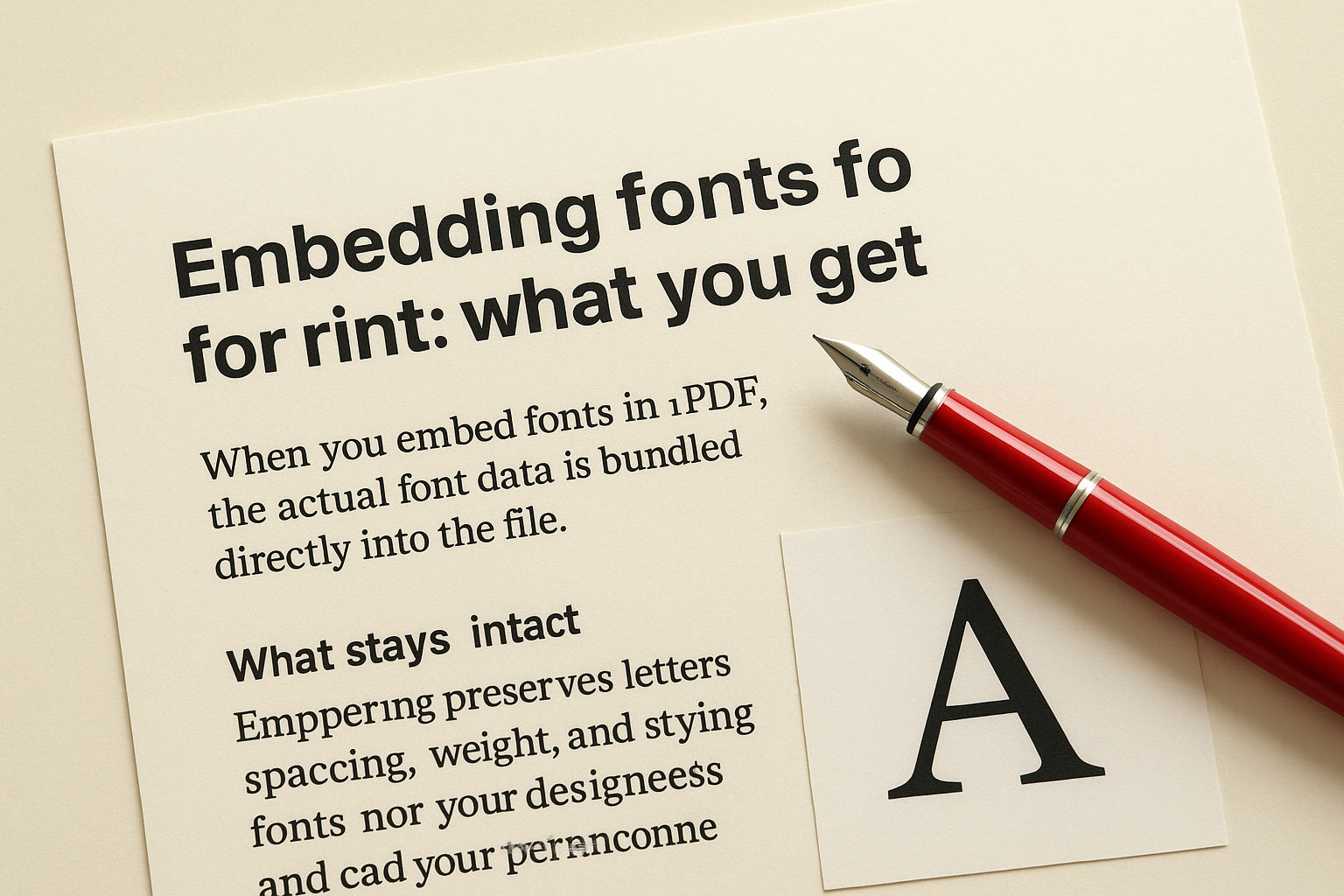
When you embed fonts in a PDF, the actual font data is bundled directly into the file. Any system that opens the document, whether it’s a print technician’s workstation or an automated RIP processor, reads the same character instructions your design software used. The text renders exactly as you intended, with no substitution and no layout drift.
What stays intact
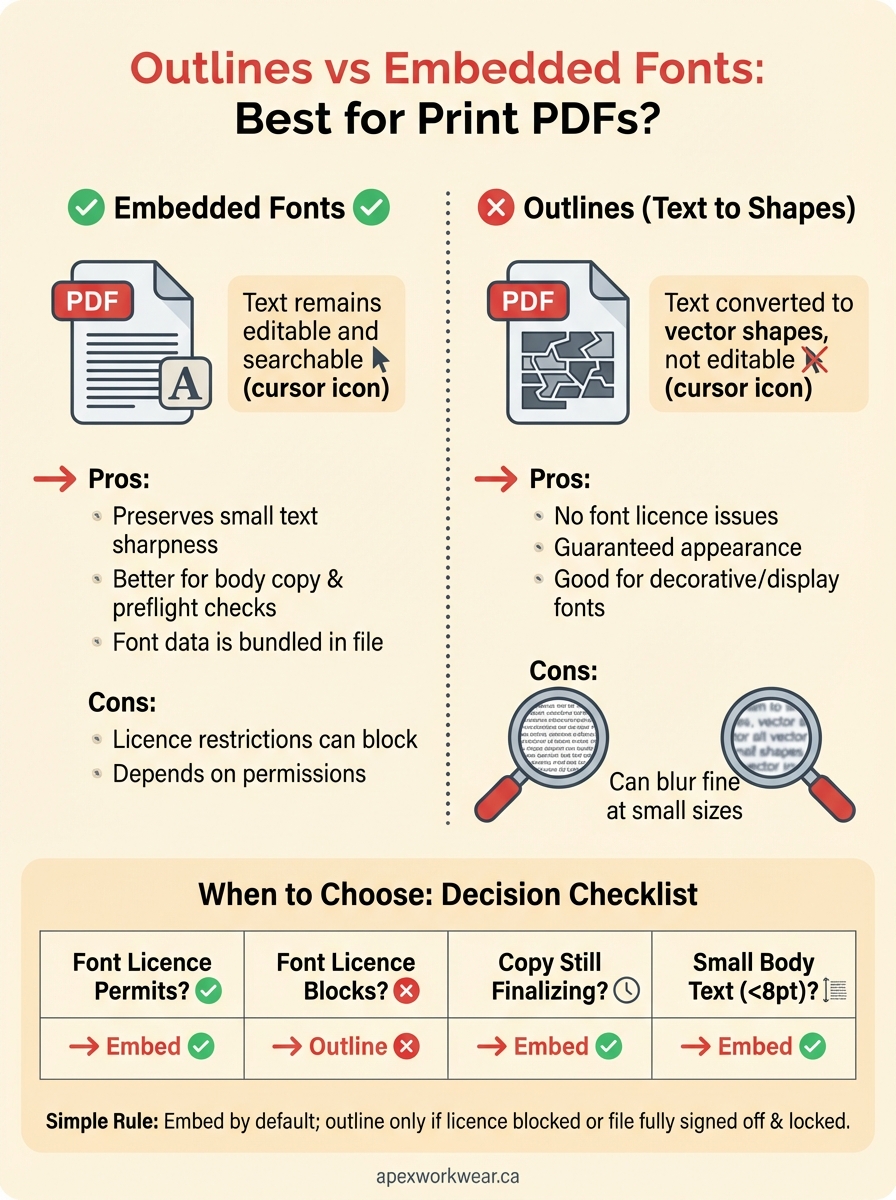
Embedding preserves letter spacing, weight, and styling precisely as you designed them. When weighing outlines vs embedded fonts, embedding has one clear practical advantage: the text stays selectable and searchable inside the final PDF. That matters when your print provider needs to preflight the file, verify copy accuracy, or flag a correction before the job goes to press.
Embedded fonts give you the closest thing to a guaranteed match between your screen and the finished print.
Your layout stays anchored to your original design specs, and the file is far less likely to trigger a preflight error on arrival. The one condition is that embedding requires the font licence to permit it, so check your permissions during export rather than assuming everything will be included automatically.
Outlining text for print: what you trade off
Converting text to outlines turns every character into a vector shape, which removes all font dependency from the file entirely. There is no font licence to worry about and no substitution risk on the receiving end. In the debate around outlines vs embedded fonts, outlining is a reliable safety net for decorative or restricted typefaces. But it comes with real trade-offs you should weigh before sending your file.
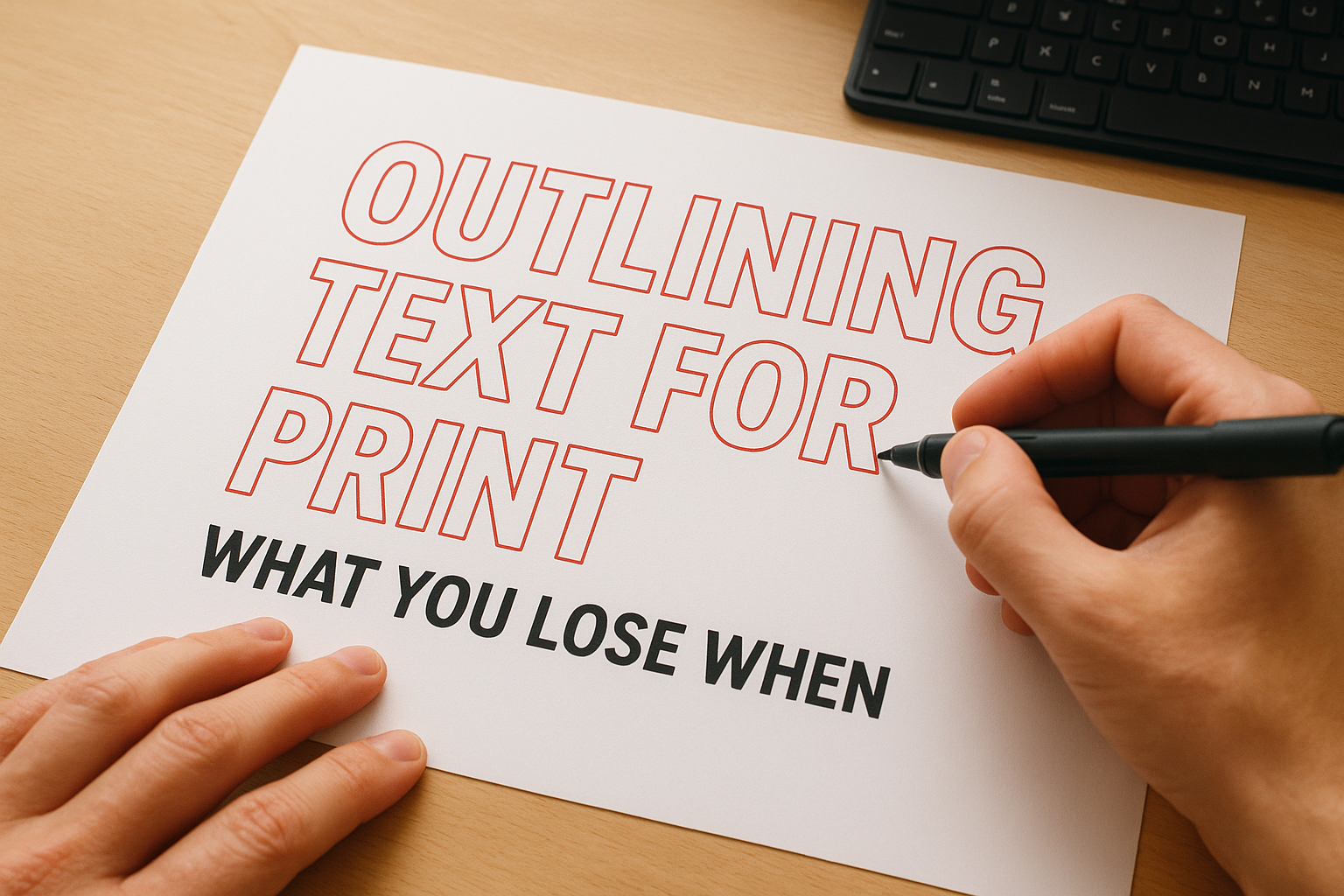
Once you outline your text, neither you nor your print provider can edit the copy directly inside the PDF.
What you lose when text becomes shapes
Outlined text is no longer searchable or selectable in the final file. If your printer spots a typo during preflight, or needs to verify copy accuracy before going to press, they cannot click into the text to check it. You also lose the ability to make quick last-minute corrections without returning to the original source file and re-exporting.
Small text is where outlining does the most visible damage. Fine strokes and thin letterforms can lose sharpness during conversion, particularly at small point sizes, because vector paths do not always preserve the original hinting data that font files use to sharpen characters both on screen and in print.
How to check and fix fonts before sending
Before committing to either side of the outlines vs embedded fonts decision, run a quick preflight check on your file. Adobe Acrobat lets you inspect font data through the Document Properties panel under File, Properties, then the Fonts tab. Every font in the file appears there along with its embedding status. Any entry listed as "not embedded" is a problem that needs fixing before you send.
Fixing fonts in Adobe software
In Adobe InDesign, open File, then Export, and choose PDF (Print). Under the Advanced tab, set subset embedded fonts to 100% to include complete font data. In Illustrator, select all text and use Type, then Create Outlines if you want to convert instead. Either way, always keep your original editable source file before making permanent changes, so corrections remain possible later.
Never send your only working copy of a file after outlining text. Keep the original intact.
Choosing the right PDF format
Send your printer a PDF/X-1a or PDF/X-4 file, as both formats enforce full font embedding by default. Most professional print providers, including the team at Apex Workwear, request one of these standards specifically because they eliminate the most common font-related preflight failures before a job reaches the press.
When to embed vs outline: decision checklist
The outlines vs embedded fonts decision comes down to a few specific factors: font licence permissions, whether the copy can still change before print, and the point size of your body text. Checking these variables before you export takes only a few minutes and prevents the most common preflight rejections your printer will flag.
Match your situation to the right method
Use this checklist to identify which approach fits your file before you export and submit.
| Situation | Best method |
|---|---|
| Font licence permits embedding | Embed |
| Font licence blocks embedding | Convert to outlines |
| Copy still needs final approval | Embed |
| File is locked and fully approved | Either |
| Decorative typeface at large display sizes | Outline |
| Body text under 8pt | Embed |
When your file mixes restricted and permissive fonts, outline only the restricted ones and embed everything else.
For most small business print jobs, embedding covers the majority of use cases cleanly without sacrificing editability. Outlining becomes the right call when your font licence is restrictive or the file is fully signed off and you want to remove any font risk before submission. When you are unsure, ask your printer for their preferred file specification before starting the export process.
A simple rule to follow
The simplest way to handle outlines vs embedded fonts is: embed by default, and outline only when the font licence blocks embedding or the file is fully signed off and locked. Most print jobs benefit from embedding because it keeps your text editable, preserves sharpness at small point sizes, and satisfies preflight requirements without extra conversion steps.
Check your font permissions during export, not after. If a specific typeface blocks embedding, convert only that font to outlines and embed everything else in the file. Always keep your original editable source file intact before you convert anything, so last-minute corrections stay possible without starting from scratch.
If you are preparing files for business cards, flyers, banners, or custom apparel tags and want a second pair of eyes before anything goes to press, the team at Apex Workwear reviews every file before production and catches font issues before they become print problems.