Whether you’re printing shipping labels, asset tags, or branded stickers for your products, a Brother P-touch label printer is one of the most practical tools a small business can own. But the hardware alone won’t get you far, you need the right software to design and print labels that actually look professional. If you’ve been searching for a brother label printer software download, you’re in the right place to get the exact steps and official sources you need.
At Apex Workwear, we help Canadian businesses with custom apparel and print products every day, from branded clothing to stickers and labels. We know firsthand how important it is to get your tools set up properly so you can focus on running your business instead of troubleshooting software installs.
This guide walks you through downloading and installing P-touch Editor 6, Brother’s free desktop label design software, along with the necessary printer drivers and mobile app options. By the end, you’ll have everything installed, connected, and ready to print your first label.
What you need before you start
Before you start the brother label printer software download, gather everything listed below. Having the right items ready upfront prevents you from stopping halfway through the install to track down a model number or dig out a USB cable.
Confirming your printer model and connection type before you download anything is the single step that saves the most time.
Compatible Brother label printers
P-touch Editor 6 works with most current Brother P-touch and QL series label printers. Not every older model is fully supported, so confirm yours is on the compatibility list before you download anything. If you are unsure which series you own, check the sticker on the bottom or back of the printer.
Here are the two main printer families this guide covers:
- P-touch series (e.g., PT-D410, PT-P710BT, PT-E550W): handheld TZe tape printers used for asset tags, cable labels, and general office labelling
- QL series (e.g., QL-800, QL-1110NWB): desktop printers that use die-cut or continuous DK rolls for shipping labels and barcodes
Software and system requirements
Your computer needs to meet a few minimum specifications before the installation will run cleanly. Brother officially supports the following environments:
| Requirement | Windows | macOS |
|---|---|---|
| OS version | Windows 10 or 11 | macOS 11 (Big Sur) or later |
| RAM | 2 GB minimum | 2 GB minimum |
| Disk space | 500 MB free | 500 MB free |
| Connection | USB, Wi-Fi, or Bluetooth | USB, Wi-Fi, or Bluetooth |
You’ll also need administrator access on your computer to complete the installation. If you are working on a machine managed by an IT department, confirm permissions with them before you begin so the install does not fail partway through.
Step 1. Confirm your Brother model and connection type
Before you touch the brother label printer software download page, you need two pieces of information: your exact model number and how the printer connects to your computer. Getting these wrong means downloading a driver that is incompatible with your hardware, which can cause the install to fail or leave the printer undetected.
Find your model number
Your model number is printed on a label on the bottom or back of the printer. It typically looks like PT-P710BT, QL-800, or PT-D410. Write it down before you open your browser so you can match it exactly on Brother’s support site.
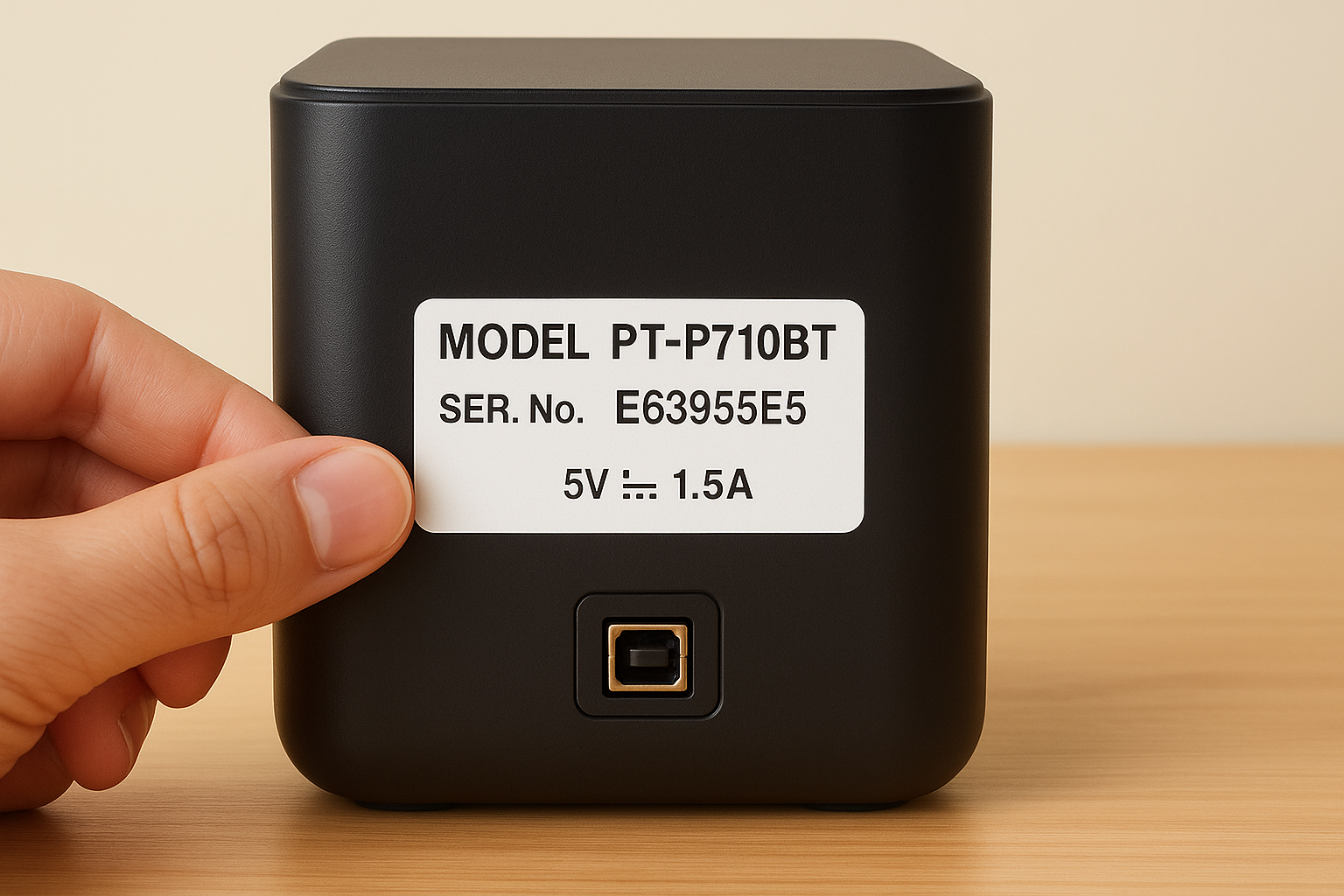
If the label has worn off, check the original box, your purchase receipt, or the printer’s built-in settings menu if it has a display screen.
Keeping an accurate record of your model number also helps if you ever need to contact Brother’s support team or look up compatible tape and label rolls in the future.
Check your connection type
Your printer connects to your computer via USB, Wi-Fi, or Bluetooth, and this detail determines which driver package you need to download. Check the back panel for a USB-B port, or navigate into the printer’s on-screen menu to see its network settings.
| Connection type | How to identify it |
|---|---|
| USB | USB-B port on the back panel |
| Wi-Fi | "W" or "NW" in the model name (e.g., QL-1110NWB) |
| Bluetooth | "BT" in the model name (e.g., PT-P710BT) |
Step 2. Download the correct Brother label software
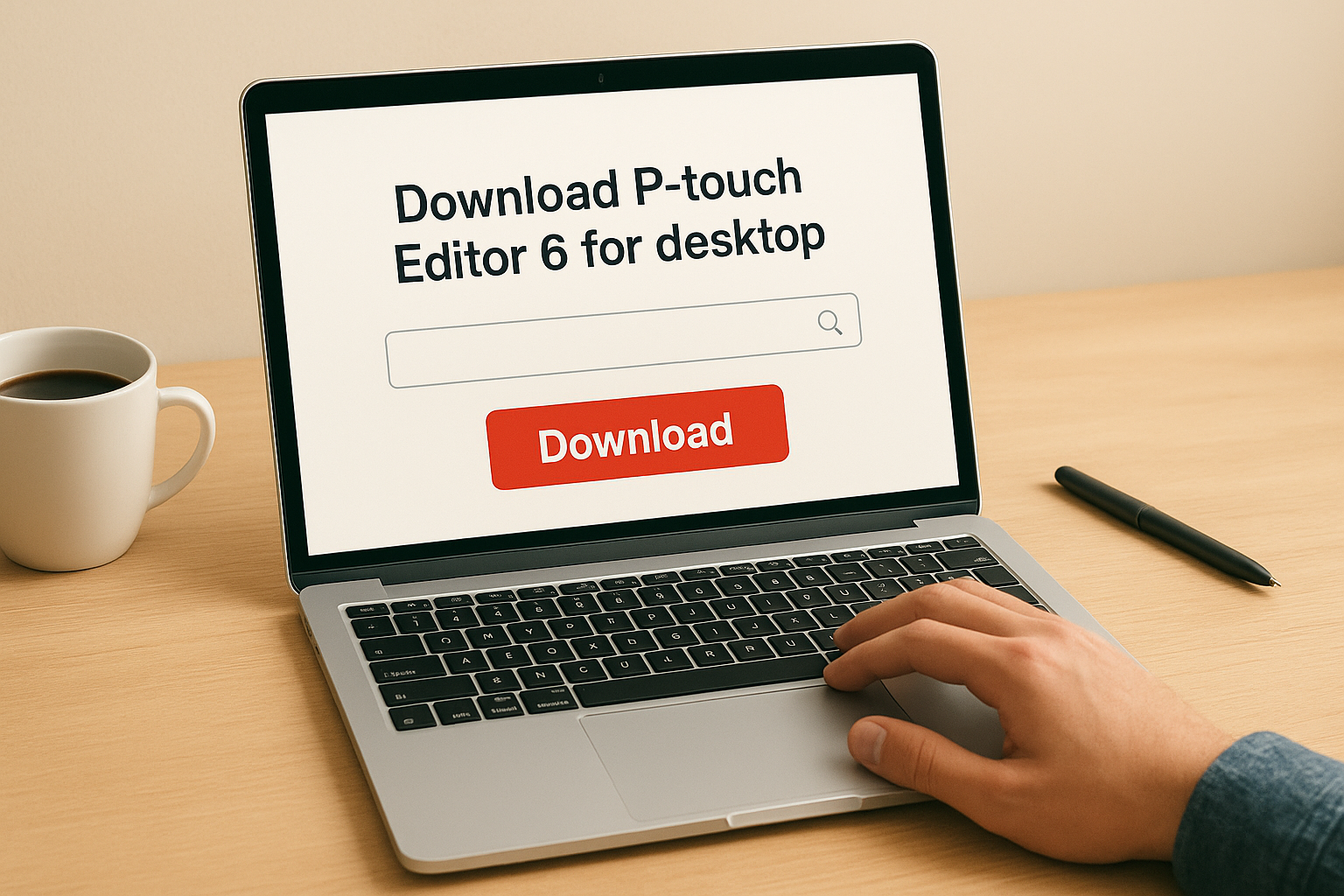
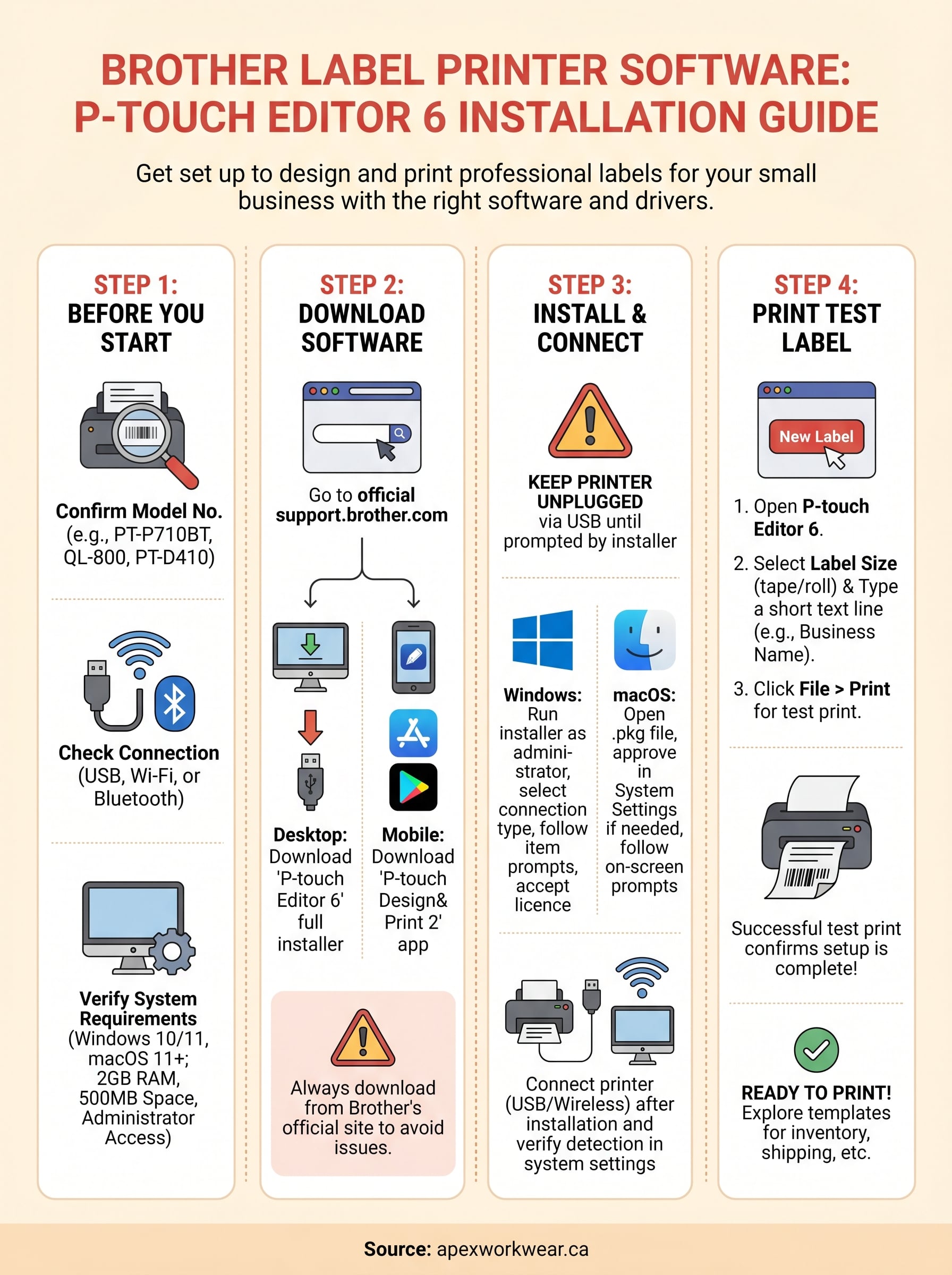
All official Brother software lives on Brother’s support website. Go directly to support.brother.com and use the search bar to enter your exact model number. This is the only source you should use for your brother label printer software download, as third-party sites frequently bundle outdated or modified installers.
Always download from Brother’s official support site to avoid driver conflicts or security risks.
Download P-touch Editor 6 for desktop
Once you find your model’s support page, navigate to the "Downloads" tab. Select your operating system from the dropdown, then look for "P-touch Editor 6" under the Software section. Download the full installer package, which includes both the application and the compatible printer driver in a single file. Save it somewhere easy to find, such as your Desktop or Downloads folder.
Download the mobile app
If you plan to print labels directly from a smartphone or tablet, Brother offers the P-touch Design&Print 2 app for both iOS and Android. Search for it on the App Store or Google Play. The app connects to Bluetooth or Wi-Fi enabled printers and gives you access to basic templates for quick label jobs on the go.
Step 3. Install P-touch Editor 6 and the printer driver
Once your brother label printer software download is complete, locate the installer file you saved and double-click it to begin. Keep your printer unplugged via USB during this stage unless the setup wizard explicitly tells you to connect it, as plugging in too early can cause Windows or macOS to assign the wrong driver.
Run the installer on Windows
Run the installer as administrator by right-clicking the file and selecting "Run as administrator." Follow each screen in the setup wizard and accept the licence agreement when prompted. When the wizard asks about your connection type, select USB, Wi-Fi, or Bluetooth to match what you confirmed in Step 1.
Do not skip the "Install Printer Driver" checkbox during setup, as P-touch Editor needs this to communicate with your hardware.
The typical install sequence looks like this:
- Accept the licence agreement
- Choose your connection type
- Allow the driver installation to complete
- Launch P-touch Editor 6 when prompted
Install on macOS
On macOS, open the downloaded .pkg file and follow the on-screen prompts. You may need to approve the installer under System Settings > Privacy & Security if macOS flags it as an unverified package. Once approved, the installation completes automatically and adds P-touch Editor 6 to your Applications folder.
Step 4. Connect the printer and print a test label
With P-touch Editor 6 installed, connect your printer using the cable or wireless method you identified in Step 1. Your operating system should detect the printer automatically within a few seconds and confirm it in the device list.
Connect and verify detection
Plug in your USB cable, or enable Wi-Fi and Bluetooth on the printer using its on-screen menu. Then confirm the printer is detected on your computer using the path that matches your OS:
- Windows: Settings > Bluetooth & devices > Printers & scanners
- macOS: System Settings > Printers & Scanners
If your printer does not appear, unplug it, restart P-touch Editor 6, and reconnect. This resolves most detection issues without requiring a fresh brother label printer software download.
Print a test label in P-touch Editor 6
Open P-touch Editor 6 and select "New Label" from the start screen. Choose your tape or label size from the dropdown to match the roll currently loaded in your printer. Type a short line of text, such as your business name, then click File > Print and send one copy. A successful test print confirms your driver, software, and printer are all communicating correctly.
You’re ready to print labels
You now have P-touch Editor 6 installed, your printer driver configured, and a confirmed test label behind you. Your entire workflow, from completing the brother label printer software download to sending your first print job, is done. From here, spend a few minutes exploring the template library inside P-touch Editor 6 to build labels for inventory tags, shipping addresses, cable management, or whatever else your business prints on a regular basis.
Printing your own labels works well for small, everyday jobs on a single machine. But when your business needs professionally printed stickers, product labels, or branded print materials in volume, a dedicated print partner makes a real difference. Apex Workwear produces custom stickers, labels, and a full range of print products right here in Canada, with fast turnaround and no minimums on select items. See how custom stickers and print products from Apex Workwear can support your brand without extra complexity.